
softGlue User Guide
Table of contents
- User interface
- Circuit element reference
- Add-on FPGA components
- Saving and restoring circuits
- Example circuits
- Custom interrupt handlers
User interface
In this documentation, “input” and “output” are from the viewpoint of the circuit elements being wired, not from the EPICS viewpoint. Field I/O is an exception, discussed from the viewpoint of the field-wiring connector.
User menu
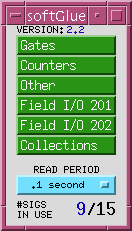
softGlueMenu.adl is the top softGlue display, which serves mostly to call up other displays. The menu labelled READ PERIOD specifies the period at which the values of all signals are sampled for display to the user.
Most softGlue displays are not interrupt driven. (That would be a disaster, because inevitably some signals will change state at high frequency.) So, the states of inputs and outputs must be sampled periodically, for display to the user. Polling everything at 0.1 second uses only a few percent of an MVME2700 CPU, and we’ve found that it’s confusing for users if the poll period is greater than around 1 second.
Display elements
The following display shows all standard softGlue components on one screen, with the signal named “clock” highlighted to show its connections. Input connections are bordered in green, and output connections are bordered in orange.
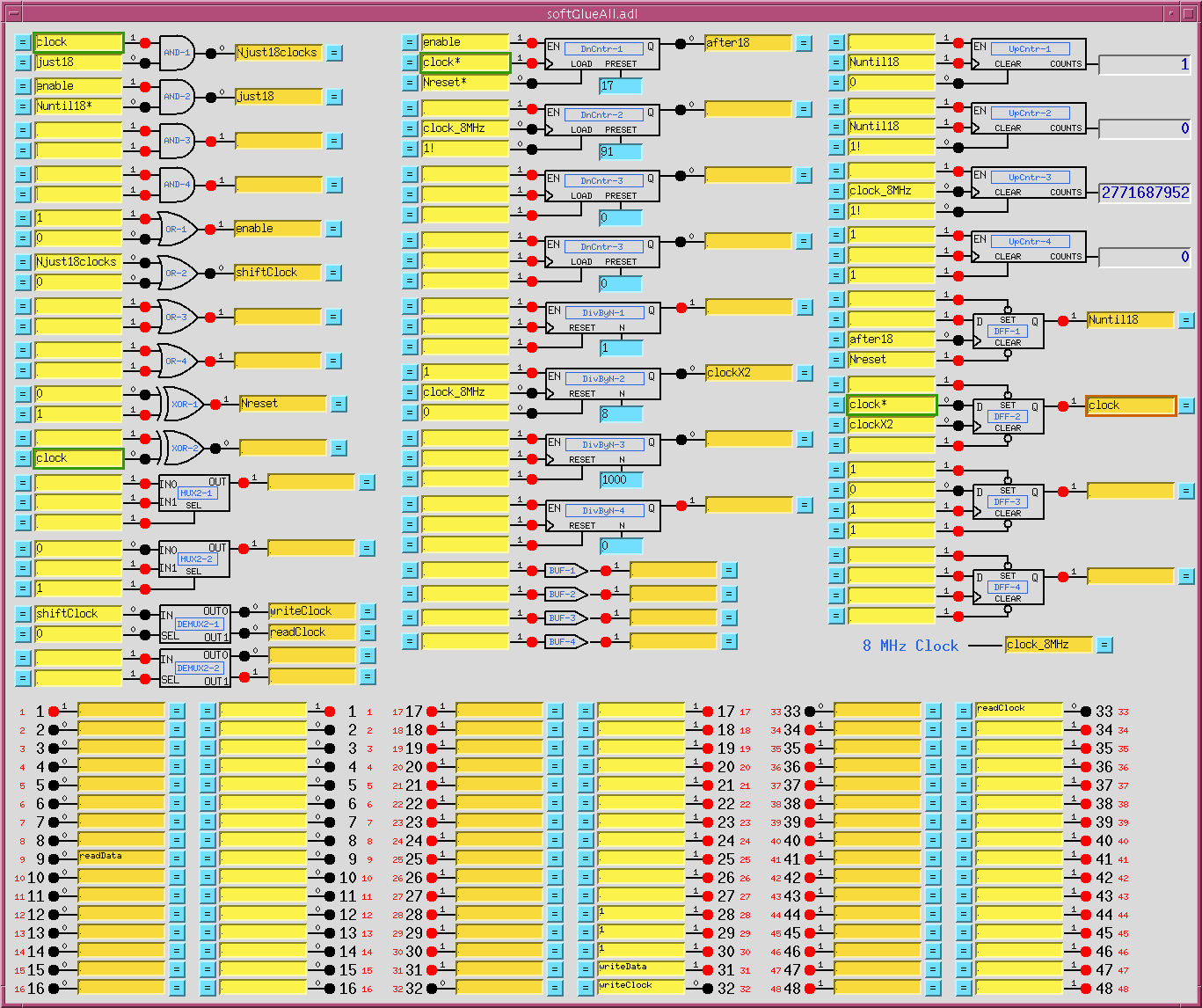
Each circuit element display follows the same layout. On the left are the inputs, each comprised of a blue = button, a yellow text-entry field, a number, and a red LED indicator. On the right are essentially the same things in reverse order, but an output’s text-entry field is a different color. The color difference is intended to remind you of the only rule governing signal connections: if you connect two or more outputs together, those outputs won’t work.
softGlue outputs are engineered to ensure that you can’t break anything by connecting outputs together, but the circuit won’t be useful until you fix the error, because the states of outputs connected together are undefined. Currently, softGlue doesn’t signal this error by putting offenders into an alarm state.
The little red and black filled circles (LEDs), and the numbers next to them, display the states of their signals. These display elements are updated at the period specified in the softGlueMenu.adl display. If you want the EPICS PV name corresponding to a signal’s logic value, this is the PV name to use.
A signal’s blue = button is used to find all other signals to which the signal is connected. While a signal’s = button is pressed, input signals connected to it are bordered in green, and output signals connected to it are bordered in orange. If you ever see two or more orange borders at the same time, you have outputs connected together, and your circuit won’t work.
Connecting signals
The yellow text-entry box controls an input. You have three options:
-
Leave empty. Inputs with empty text-entry boxes default to logic value 1.
-
Enter a string that begins with a number. This directly writes a logic value (optionally, a pulse) to the input.
softGlue will parse everything that looks numberish, and convert to a floating point value. This sets the input to a logic value: 0 if the nearest integer to the converted value is zero, 1 if it’s not.
Allowing floats, and extra characters after the number, makes it easier to drive softGlue inputs with calcout records, replies from serial devices, etc.
The strings
0!and1!(possibly followed by other ignored characters) direct softGlue to write a pair of logic values:0!writes0followed immediately by1;1!writes1followed immediately by0. The time interval between writes is system dependent, and not at all guaranteed, but it should be much smaller than the interval you could achieve from separate writes. On an MVME2700, the interval is around 6 us. -
Enter a string that begins with something other than a number. This names the signal, and connects it to all other signals with the same name (or with the same name followed by
*, as described below). Case is significant in comparing signal names.
A “signal”, as the word is used in this documentation, is a named connection between softGlue circuit elements. It might be more intuitive to think of a “signal” as a wire, to avoid confusing it with field I/O.
If you’re using more than one IP-EP20x module, you can’t connect signals implemented in different IP-EP20x modules using their text-entry boxes. To accomplish this, you must connect the signals to field I/O and make a physical connection.
Signal inversion
If you want to use the inverted value of a signal for input to some component, append * to the signal name. This doesn’t change the signal that the input is connected to, but just tells softGlue to run the signal through an inverter before applying it to the input. Note that output signal names may not end with *.
Signal name limits
You can define at most fifteen different signal names. When you try to define the 16th name, softGlue will erase whatever you wrote, and put the record into the “INVALID” alarm state. (But note, for example, that reset and reset* are not different signal names, because the trailing * is not regarded as part of the name; it merely describes how the signal should be used.)
Text-entry boxes for output signals won’t accept names beginning with a number, or ending with *. (softGlue will simply strip the offending characters, and leave the rest.)
A signal name beginning with a number can only be a direct-write command; it cannot connect things together, because the leading number would be misinterpreted by input-signal-name parsing as a direct-write command. Output-signal names ending with
*are logically sensible, but are not permitted; this simplifies the implementation of*appended to input-signal names.
Drag-and-drop / copy-paste
In MEDM, you can use Drag-And-Drop to connect a named signal to some other signal. When you drop, MEDM will put the PV name of the signal you dragged from. When you press Enter, softGlue’s device support will write the signal name of the source PV to the destination PV.
In caQtDM, you can select the text of a signal name, and use Copy/Paste (Ctrl-C/Ctrl-V) to copy the signal name from one text-entry box to another.
Field I/O
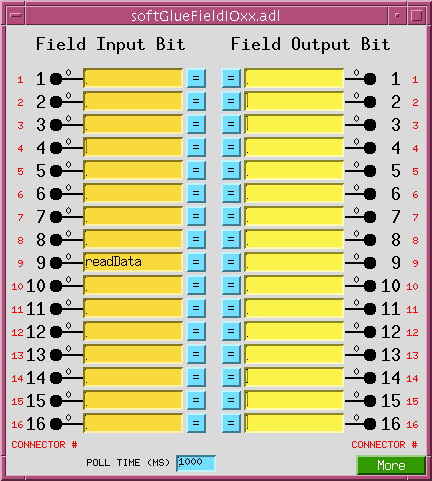
This display allows you to connect field I/O signals to each other and to softGlue circuits. Note that a “Field Input Bit” looks like and behaves as a softGlue output, because what you’re actually controlling is the output of a buffer driven by the field-input signal. Similarly, a “Field Output Bit” looks like and behaves as a softGlue input, because you’re actually controlling the input of a buffer that drives the field-output signal.
The signals in this display are the field inputs or outputs connected to pins 1-16, 17-32, or 33-48 on the IP-EP201’s ribbon connector. The IP-EP201 board supports 48 I/O bits, and permits them to be set for input or output in groups of 8.
POLL TIME (MS) specifies the period at which softGlue reads the I/O ports for user-display purposes, and for executing the EPICS link associated with non-interrupt-enabled I/O bits (see next section). If an I/O bit has changed value since the last read, softGlue processes the display record associated with that bit, so the user will see the new value. If an I/O bit is enabled to generate interrupts, as described in the next section, the bit will be read immediately by the interrupt handler, so POLL TIME will not matter for that bit.
If you have a field input connected to an FPGA component, the component will react to a change in the input value within nanoseconds. I/O polling is not involved at all in the logic connection.
You can change the
CONNECTOR #strings in this display – for example, to support a custom signal-breakout module, or to give the I/O signals application-specific names. The strings are defined insoftGlueApp/Db/softGlue_FPGAContent.substitutions, as the macroIOPINsupplied tosoftGlue_FieldOutput.dbandsoftGlue_FieldInput.db. In softGlue 2.3.1, field I/O displays leave room for longer strings, and there is an autosave-request file for these PVs.
During a VME power cycle, and during a VME reset, field outputs are first put into a high impedance state, then are driven to ground, and finally are driven to values controlled by the user circuit. If user-circuit field-outputs are autosaved, they will be restored during the boot; otherwise, they will default to logic 1 (+5V for TTL).
During a soft reboot (that is, when the vxWorks reboot command is given in the IOC console), field outputs will maintain their values.
Field I/O interrupt support
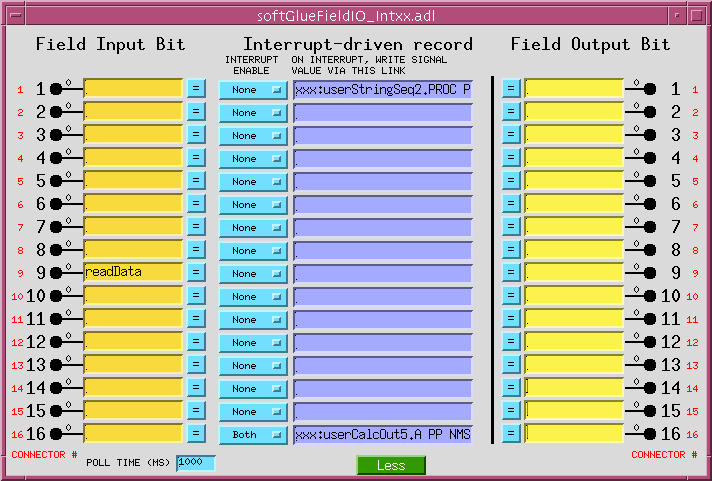
Field-input lines supported by softGlue can generate interrupts on rising edges, falling edges, both, or neither. You control this by setting the INTERRUPT ENABLE menu to Rising, Falling, Both, or None, respectively. Field output lines can also generate interrupts: if a bit is designated as an output, the output is connected also to the input, and to the input’s interrupt-generation circuitry.
Interrupts are throttled by softGlue’s interrupt handler. If more than four interrupts have occurred and not been handled, softGlue will disable interrupts from the offending bit, by setting the bit’s INTERRUPT ENABLE menu to None, and it will direct your attention to the change by drawing a red box around the menu control. The box will be erased the next time the menu is written to.
The number of unhandled interrupts that triggers throttling is adjustable by modifying
drvIP_EP201.c. You must change the definition ofMAX_IRQ, and you must also ensure that the asyn ring buffers for interrupt driven PVs is larger thanMAX_IRQ. (The default ring buffer size is 10. Asyn documentation describes how to change it.)
When an interrupt occurs, you can have the signal value written to an EPICS PV, by writing an EPICS link description into the purple box labelled “ON INTERRUPT, WRITE SIGNAL VALUE VIA THIS LINK”, as shown for input 16 in the above screen shot.
For interrupts that may occur too closely spaced in time for softGlue’s normal interrupt-response mechanism to handle reliably, see “Custom interrupt handlers” below.
About EPICS links
In softGlue displays (and in most other synApps displays), standard EPICS links are displayed as purple text-entry boxes, in which you describe the link you want to make. For purposes here, an EPICS link description is the name of an EPICS PV, followed by one of the following link attributes:
| Attribute | Description |
|---|---|
| NPP | (default) Write value, but do not cause processing. |
| PP | Write value and cause processing (if the record containing the PV is “Process Passive”, which means that its SCAN field has the value “Passive”). You should use this attribute unless you have some reason not to. |
| CA | Write value and let the record containing the PV decide whether or not to process. |
EPICS will tack on the string “ NMS”. This alarm-propagation attribute is not something end users need to worry about.
For example, to cause a link to write effectively to the top input of the first AND gate (whose PV name is xxx:softGlue:AND-1_IN1_Signal), you would write the following into a purple box:
xxx:softGlue:AND-1_IN1_Signal PP
If you only write the PV name, EPICS will supply the link attribute NPP, and your link will write a value, but the value won’t have any effect until the next time the record processes. (For most PVs in softGlue, the value written by an NPP link won’t even be displayed until the record processes.)
If the link writes to a PV in a different IOC, the specified link attribute will be ignored, and the attribute CA will be used instead.
Convenience
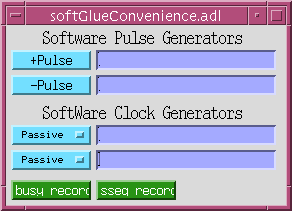
This display controls two pulse generators implemented in EPICS, with links allowing them to write to a softGlue input (that is, to a yellow box), and, similarly, two clock generators implemented in EPICS. The display also has MEDM related-display callups for two busy records.
The use of EPICS links (the purple boxes in the above display) is described in “About EPICS links” above.
Busy record
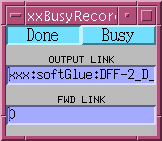
This display controls the value, output link, and forward link of a busy record. In the anticipated use with softGlue, one would have some EPICS record outside of softGlue set the busy record to “Busy” (using a PP link), and arrange for a softGlue interrupt bit (see “Field I/O interrupt support” above) to use its EPICS-output link to clear the busy record to “Done” (using a CA link).
It’s important to set a busy record to “Busy” using a PP link, because the purpose of a busy record is to represent some external processing as EPICS processing. This allows EPICS’ execution tracing to signal the completion of the processing. EPICS only traces processing started or propagated with a PP link. It’s important to clear a busy record to “Done” with a CA link, because an EPICS PP link will decline to process any record that is already processing. The busy record is written so that a CA put will succeed in clearing it and causing its processing to appear done to EPICS.
Circuit element reference
In truth tables, x means “either 0 or 1”.
Logic gates
AND
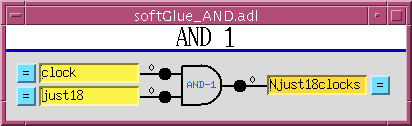
| input1 | input2 | output |
|---|---|---|
| 0 | x | 0 |
| x | 0 | 0 |
| 1 | 1 | 1 |
OR
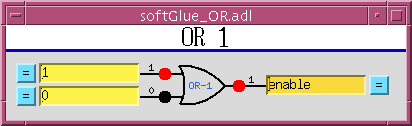
| input1 | input2 | output |
|---|---|---|
| 0 | 0 | 0 |
| 1 | x | 1 |
| x | 1 | 1 |
XOR
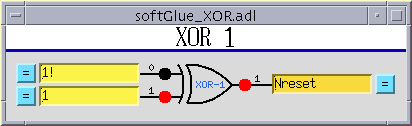
| input1 | input2 | output |
|---|---|---|
| 0 | 0 | 0 |
| 0 | 1 | 1 |
| 1 | 0 | 1 |
| 1 | 1 | 0 |
Buffer
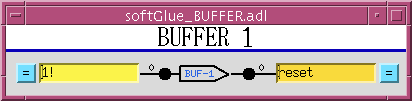
The purpose of the buffer element is to permit EPICS to drive several softGlue inputs by writing to a single PV, without using up a more valuable circuit element, such as the XOR gate.
Inverting buffer
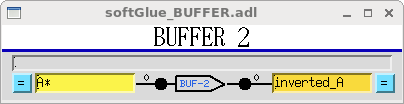
There is no inverting buffer – or any other inverting gate – in softGlue. Signal inversion is accomplished by appending * to the name of a signal used as input to any logic element, as demonstrated above for the buffer element. Note that * appended to the name of an output signal will be removed.
Flip-flops and multiplexers
D flip-flop
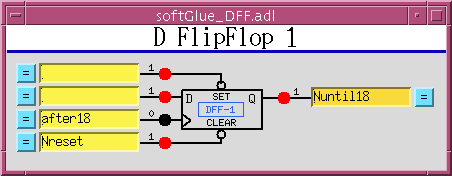
The input signal labelled > is the “clock” input. Unlike other signals, clock inputs are edge sensitive. All clock inputs in softGlue act on the rising edge of the input signal.
The open circle (“bubble”) in the SET and CLEAR inputs’ signal paths indicate that these signals are inverted before being used. Thus, applying 0 to the CLEAR input causes the output to be “cleared” (given the value 0).
| SET | CLEAR | D | > (clock) | Q |
|---|---|---|---|---|
| 0 | 0 | x | x | undefined |
| 0 | 1 | x | x | 1 |
| 1 | 0 | x | x | 0 |
| 1 | 1 | any | rising edge | D_BEFORE (value D had immediately before the rising edge of the clock signal) |
2-input multiplexer
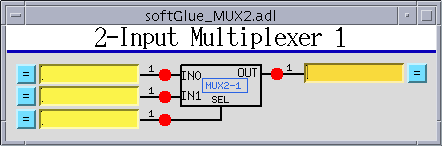
When SEL==0, OUT=IN0. When SEL==1, OUT=IN1.
2-output demultiplexer
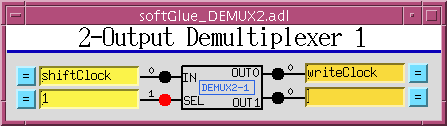
When SEL==0, OUT0=IN, and OUT1 is undefined (currently 0). When SEL==1, OUT1=IN, and OUT0 is undefined (currently 0).
Counters and timers
Up counter (32-bit)
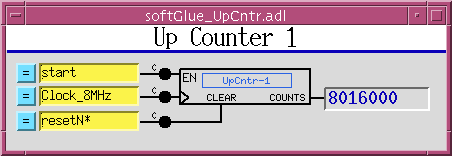
EN==1 enables the clock (>) input, whose rising edge increments the counter value.
Down counter (32-bit preset)
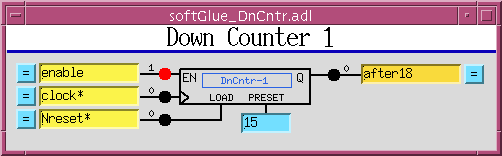
EN==1 enables the clock (>) input, whose rising edge decrements the counter value. When LOAD==1 the counter is loaded with the value applied to the PRESET input. While LOAD==1, the counter does not count down. While LOAD==0 and EN==1, a rising edge at the clock input decrements the counter. When the counter value reaches 0, the output Q goes to 1; the next rising edge of the clock returns Q to 0 (regardless of the states of EN and LOAD).
32-bit divide by N
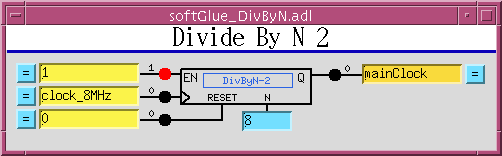
EN==1 enables the clock (>) input. Every Nth rising edge of the clock drives Q to 1. The next rising edge returns Q to 0. This behavior produces the correct number of rising edges of the output signal, but it does not guarantee the same number of falling edges. Therefore, using an inverted copy of the output to clock downstream electronics will in some cases have inconsistent results. When N==0, the divide circuitry is bypassed, and the clock is connected directly to Q. This is an error; the output should still be gated by the EN signal.
In softGlue version 2.1 and earlier, the RESET signal doesn’t do anything. Beginning with softGlue 2.2, the RESET signal loads the counter with N, so that Q will be driven to 1 after N rising edges of the clock. RESET does not clear the output Q. If Q is 1, it will be cleared on the first rising edge of the clock.
8 MHz internal clock
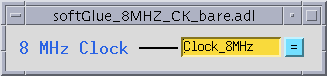
An 8 MHz clock derived from the IndustryPack clock is available to softGlue circuitry as a free standing output.
Add-on FPGA components
The following components are not in the standard softGlue package, but in add-on packages typically made to solve specific problems.
32-bit up/down counter
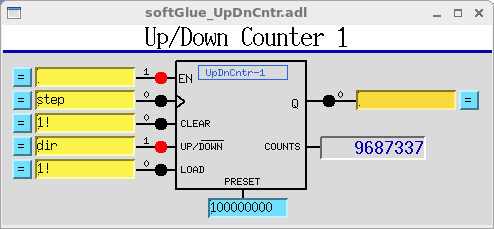
EN==1 enables the clock (>) input. CLEAR==1 sets the current count and the output value Q to zero. When UP/DOWN==1 the counter counts up. LOAD sets the current count to PRESET.
Quadrature decoder
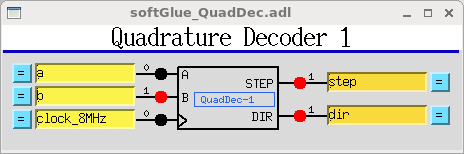
This circuit converts a pair of digital quadrature signals A, B (for example, signals from an encoder) into a pair of STEP, DIR signals. A and B are sampled on rising edges of the CLOCK signal. If either have changed since the last rising edge, the travel direction implied by the change is output to DIR, and a pulse is output to STEP. The pulse width is equal to the period of the CLOCK signal, and the input frequency may not be greater than half the clock frequency.
Shift register
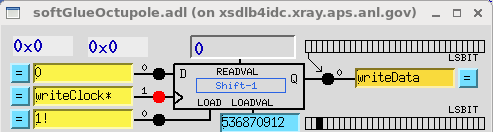
This circuit converts from parallel to serial, or from serial to parallel.
For parallel-to-serial conversion, a number is written into the LOADVAL register, and loaded by a positive-going pulse to the LOAD input. On each rising edge of the clock input >, the loaded value is shifted toward the most significant bit, and the most significant bit is output to the Q output.
For serial-to-parallel conversion, the input D is sampled on the rising edge of the clock input, and that value is shifted into the least significant bit of the register.
Four-output demultiplexer
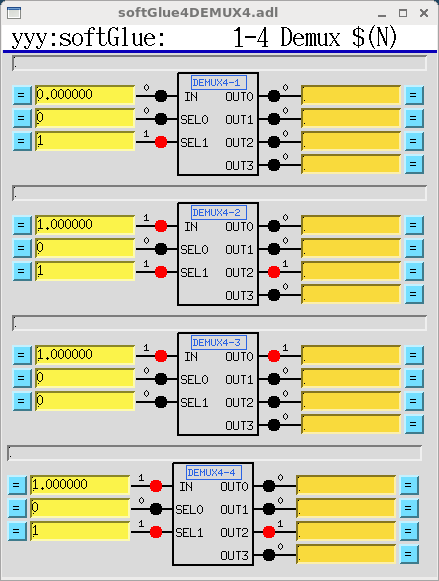
When SEL0==0 and SEL1==0, OUT0=IN, and other OUTs are undefined (currently 0).
When SEL0==1 and SEL1==0, OUT1=IN, and other OUTs are undefined (currently 0).
When SEL0==0 and SEL1==1, OUT2=IN, and other OUTs are undefined (currently 0).
When SEL0==1 and SEL1==1, OUT3=IN, and other OUTs are undefined (currently 0).
There are two copies of this add-on component:
SoftGlue_2_2_demux4.hex– the basic component, with all inputs and outputs routed to signal names, as usual for softGlue.SoftGlue_2_2_demux4_HW.hex– the same component, but with multiplexer outputs routed to signal names, as usual, and also hardwired to the last 16 field I/O pins. Thus,DEMUX4-1_OUT0is connected to pin 33,DEMUX4-1_OUT1is connected to pin 34, …, andDEMUX4-4_OUT3is connected to pin 48.
Encoder time average circuit
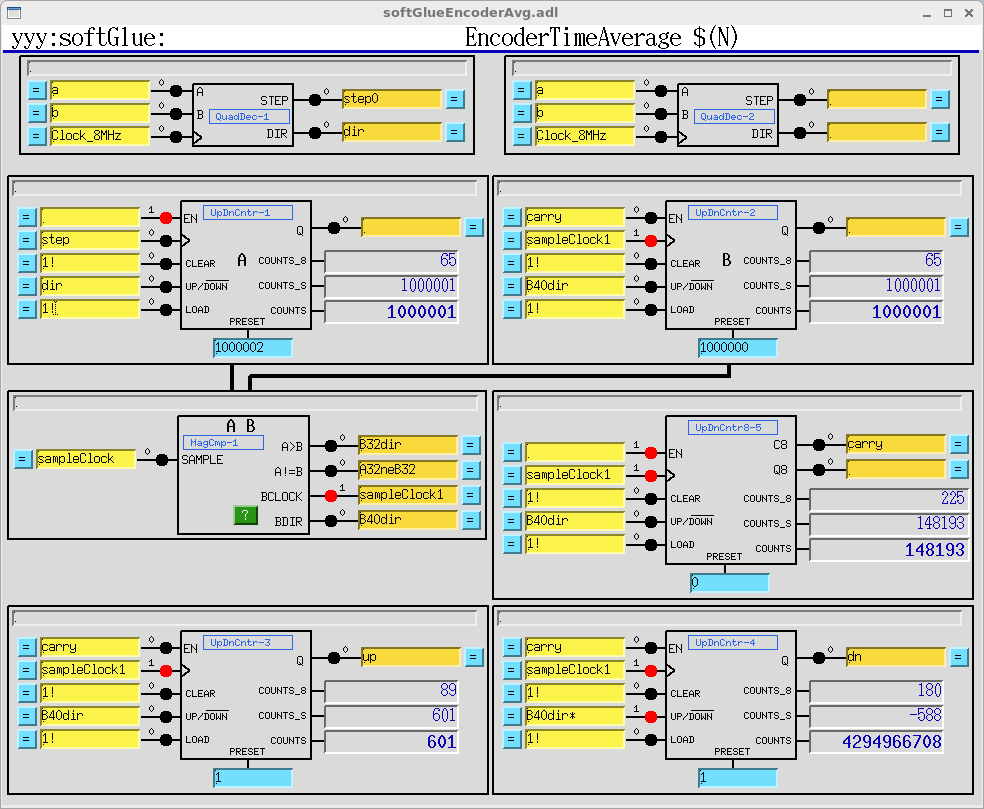
This circuit is for general encoder support, and also for generating a time averaged value of an encoder signal. Up/Down counters 1-4 are copies of the 32-bit Up/Down counter described above. Up/Down counter 5 is also a 32-bit Up/Down counter, but it has no Q output. Instead, it has Q8 and C8 outputs. Q8 is true whenever the 8 least significant bits are all zero. C8 is a ripple carry bit, which allows the eight least significant bits of this counter to be combined with any 32-bit counter to make a 40-bit counter.
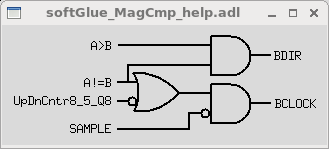
MagCmp-1 is a 32-bit magnitude comparator, which produces the signals A>B and A!=B on the rising edge of the clock SAMPLE. The component also produces the signals BCLOCK and BDIR with the following circuitry, which uses the Q8 signal from Up/Down counter 5:
Saving and restoring circuits
softGlue circuits can be saved and restored using autosave, autosave’s configMenu facility, BURT, or any channel access client that can read and write PVs. configMenu is particularly handy, because it’s driven by EPICS PVs, and because it saves a time-stamped backup copy of every file it overwrites. Whichever method you use, you may need to clear softGlue signal names before loading a circuit, because loading over an existing circuit could temporarily exceed the available number of signal names. (Alternatively, you could simply load twice, and be confident that the second load will succeed.)
Using autosave’s configMenu
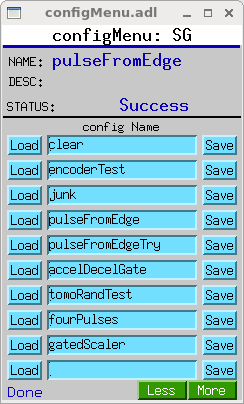
If you have autosave R5-1 or higher, you can use configMenu to save and restore circuits. Here are the steps needed to implement a menu of softGlue circuits, and to give the user a GUI display for saving and restoring them. (In the following, SG is the name of this instance of configMenu. The files it loads and saves will be named SG_<config Name>.cfg. For example, the configMenu instance pictured above has files named SG_clear.cfg, SG_encoderTest.cfg, etc.)
-
In the IOC’s startup directory, create an autosave request file, which I’ll call
SGMenu.req, with the following content:file configMenu.req P=$(P),CONFIG=$(CONFIG) file softGlue_settings.req P=$(P),H=$(H) -
Uncomment the following line in the IOC’s copy of
softGlue.cmd:dbLoadRecords("$(AUTOSAVE)/asApp/Db/configMenu.db","P=xxx:,CONFIG=SG") -
Add the following line to
st.cmd:create_manual_set("SGMenu.req","P=xxx:,CONFIG=SG") -
Add an MEDM related-display entry to bring up the
configMenu.adldisplay:label="SGMenu" name="configMenu.adl" args="P=xxx:,CONFIG=SG"
softGlue includes configMenu files (*.cfg) for standard example circuits in the iocBoot/iocSoftGlue directory. In actual use, these .cfg files would be placed in your application’s iocBoot/iocxxx/autosave directory. For more information on configMenu, see the autosave documentation.
Using BURT
The BURT request file softGlueApp/op/burt/softGlue.snap can be used to save all softGlue user modifiable PVs. For example, the following command saves the state of softGlue to the file myCircuit.snap:
burtrb -f softGlue.req -DPREFIX=xxx:softGlue -o myCircuit.snap
-f softGlue.reqspecifies that the request filesoftGlue.reqshould be used to specify the EPICS PVs whose values are to be saved. This file contains lines likePREFIX:AND-1_IN1_Signal, wherePREFIXis to be replaced by text specific to your IOC.-DPREFIX=xxx:softGluespecifies thatPREFIXis to be replaced byxxx:softGlue.-o myCircuit.snapspecifies that the saved PV names and values are to be written to the snapshot filemyCircuit.snap. No doubt your PREFIX will be different from mine, but it should be$(P)$(H)from your copy ofsoftGlue.cmd, minus the trailing:from$(H). BURT needs the:to separate “PREFIX” from the rest of the PV names it parses. If you definedHwithout a trailing:, you’ll need to make some adjustment to satisfy BURT.
The following commands restore the circuit:
burtwb -f clearAll.snap
burtwb -f myCircuit.snap
The first command is often needed because there is a limit to the number of signal names that softGlue will accept. If you neglect to clear all signals before restoring a circuit, the allowed number of signal names might be exceeded during the restore, if new signal names are defined before old signal names are deleted. (Alternatively, you could simply run the second command twice.)
To restore example circuits included in the softGlue module, or to restore a snapshot file emailed to you by some other softGlue user, you will need to edit the snapshot file to change PV names such as xxx:softGlue:AND-1_IN2_Signal to PV names in your IOC, which might look like 1ida:softGlue:AND-1_IN2_Signal.
Example circuits
The following circuits have been tested and saved in BURT snapshot files, and as configMenu .cfg files, as described above (see Saving and restoring circuits). The snapshot files can be found in softGlueApp/op/burt; the .cfg files are in iocBoot/iocSoftGlue.
Motor-pulse gate
Positive-going pulses can be gated with an AND gate, by applying the signal to one input of the AND gate, and setting the other input to 0 (deny) or 1 (allow) to control passage through the gate. Negative-going pulses can be gated with an OR gate, by applying the signal to one input of the OR gate, and setting the other input to 0 (allow) or 1 (deny) to control passage through the gate.
Gated scaler
Files: softGlueApp/op/burt/gatedScaler.snap or iocBoot/iocSoftGlue/gatedScaler.cfg
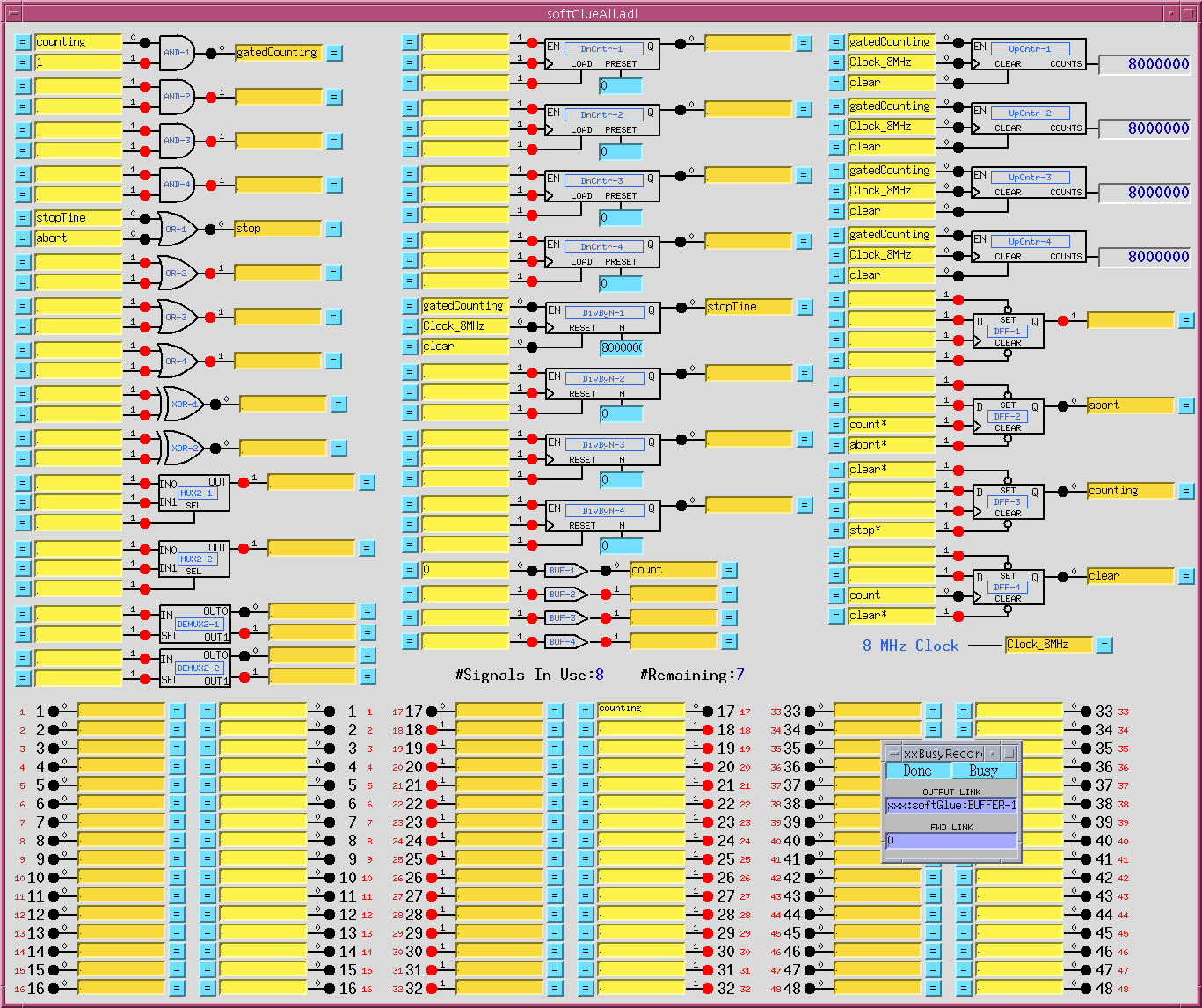
This circuit implements four counter channels, a time base to control counting time, an overall gate, and additional circuitry to control starting, stopping, and processing of the count-value records. Note that the scaler is controlled by a busy record from the softGlue convenience database, so that client software can discover when counting is finished in the standard EPICS way. See softGlueApp/op/burt/gatedScaler.txt for more details.
Four independent pulses
Files: softGlueApp/op/burt/fourPulses.snap or iocBoot/iocSoftGlue/fourPulses.cfg
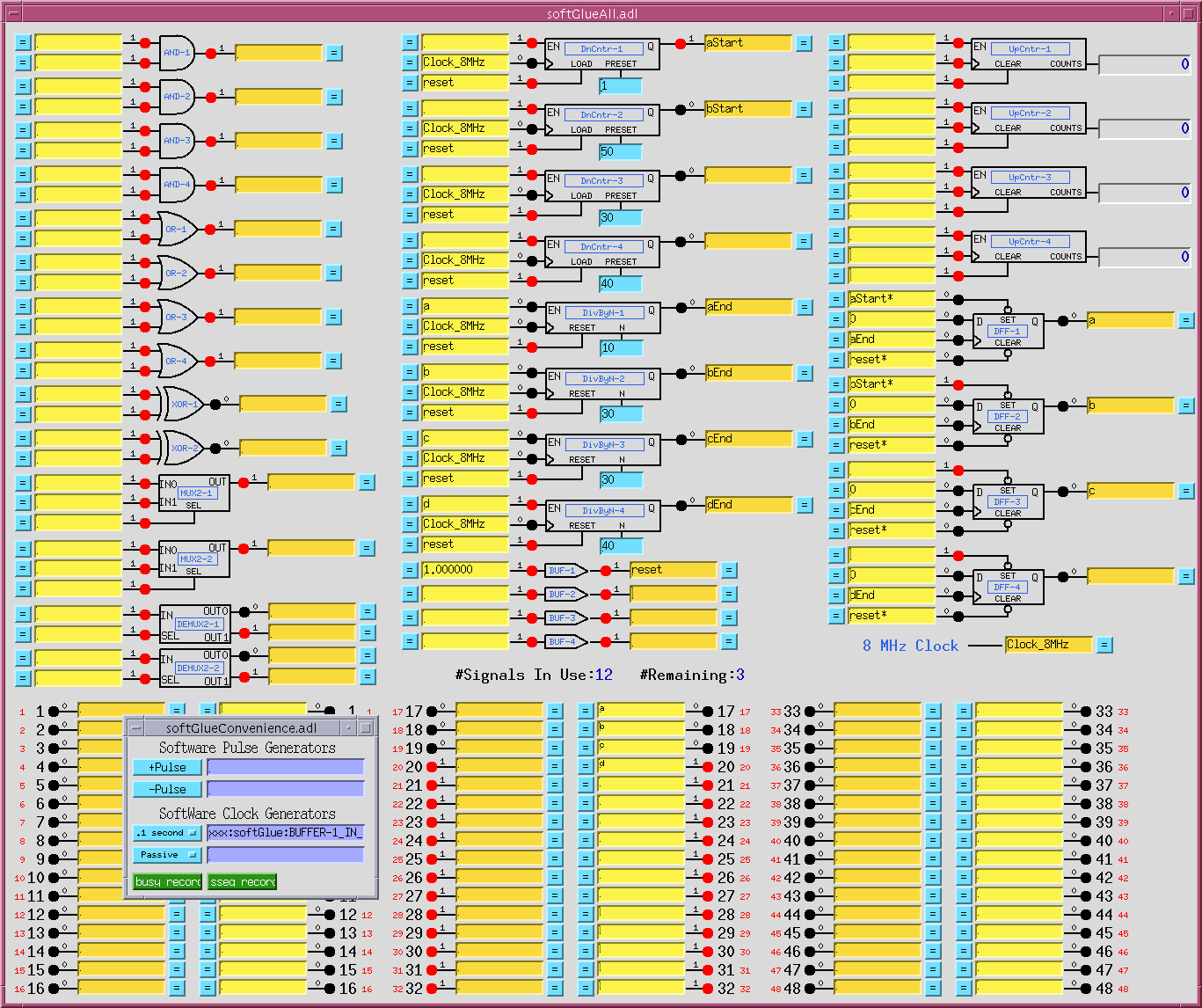
This circuit produces four separate pulse signals, which start at specified start-delay times after (the falling edge of) an initial start pulse, and which last for specified pulse-length times. It uses four DnCntrs to implement the start-delay times, and four DivByNs to implement the pulse-length times. Times are specified as multiples of the (125 ns) clock period (PRESET for the DnCntrs; N for the DivByNs), and these numbers must be greater than or equal to 1. The pulse sequence starts on the falling edge of the signal BUF-1, written by a periodically scanned EPICS record (one of the softGlue convenience clocks). One spare signal name is available, however, so the pulse sequence could also be started by an external signal.
Motor-pulse accel/decel gate
Files: softGlueApp/op/burt/accelDecelGate.snap or iocBoot/iocSoftGlue/accelDecelGate.cfg
(Non-softGlue support in softGlueApp/op/burt/accelDecelGate_transform.sav.)
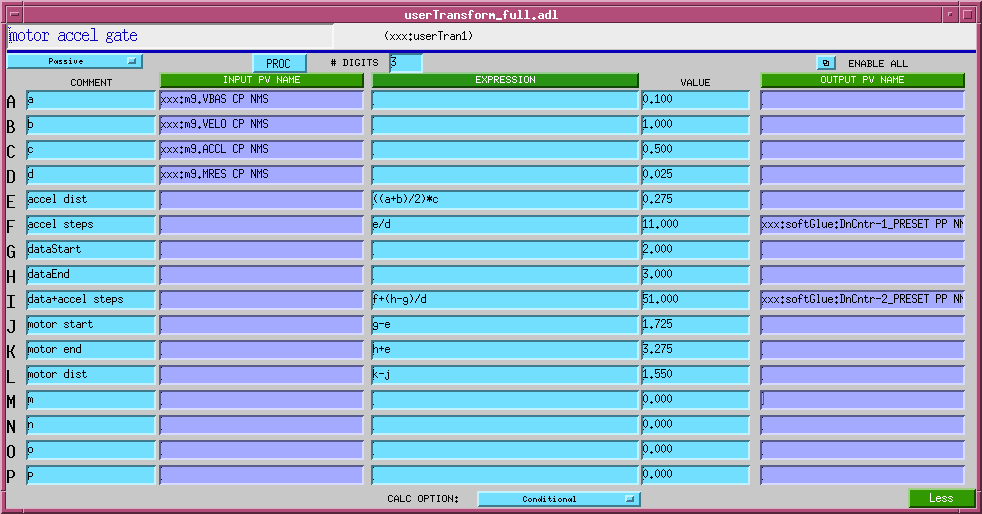
If you know the number of steps a stepper motor will move during its acceleration time, you can easily arrange to deliver motor pulses to some external circuit only while the motor is moving at constant speed. For a stepper motor controlled by the motor record, the number of acceleration/deceleration steps, N_a, can be calculated with the following formula:
N_a = ((VBAS + VELO) / 2) * ACCL / MRES
where VBAS, VELO, ACCL, and MRES are motor record fields.
The number of constant-speed steps, N_c, is then
N_c = ((VAL_end - VAL_start) / MRES) - 2 * N_a
where VAL_end and VAL_start are the final and initial values of the motor record VAL field.
The following circuit accepts negative-going motor pulses at input signal 1, gates out the first 11 (the value of DnCntr-1_PRESET), and from then on sends motor pulses to output pin 17 until a total of 31 (the value of DnCntr-2_PRESET) have been sent. The circuit is reset by writing 1! (positive-going pulse) to the input of BUF-1.
The circuit includes some diagnostics, and a mechanism for testing:
UpCntr-1counts all motor pulses;UpCntr-2counts gated motor pulses. Both counters are reset by the same signal that resets the gate circuit.- A manual reset is implemented using
BUF-1. Writing1!to the input ofBUF-1, as shown, causes a short positive-going pulse to be applied to it, and thus to its output, the signal named “reset”.
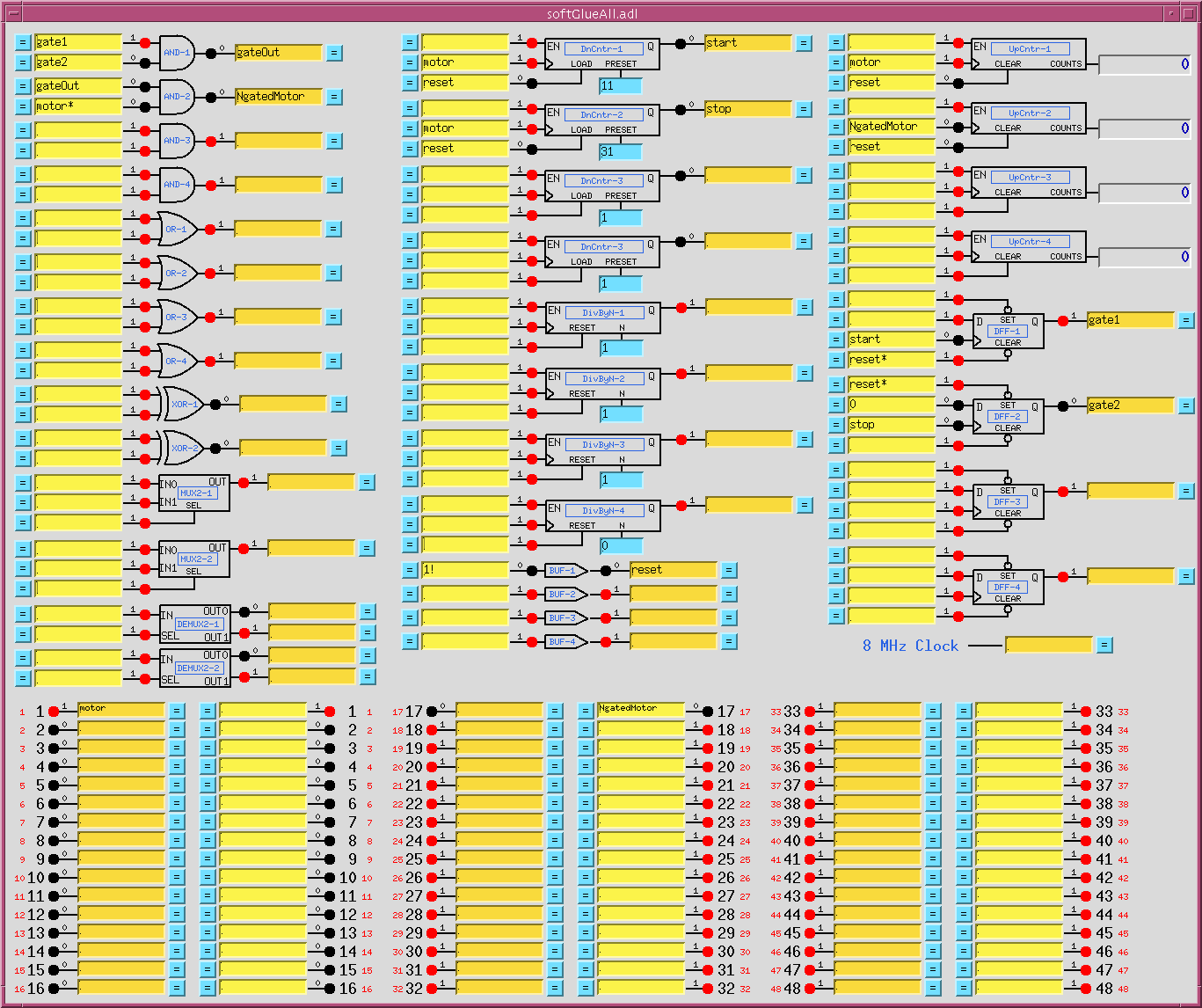
Down counter DnCntr-1, and flipflop DFF-1, together produce a gate signal that is 0 after a reset, and that goes to 1 after DnCntr-1_PRESET motor pulses. Down counter DnCntr-2, and flipflop DFF-2, together produce a gate signal that is 1 after a reset, and that goes to 0 after DnCntr-2_PRESET motor pulses. We load the number of acceleration steps into DnCntr-1_PRESET, and the number of acceleration steps plus constant-speed steps into DnCntr-2_PRESET.
AND-1 combines the gate signals produced above into a signal that is 1 while the motor is moving at constant speed.
AND-2 gates the negative-going motor pulses, using what was described in the “Motor-pulse gate” example as a positive-going pulse gate, by inverting the “motor” signal before applying it to the gate.
Note that the down counters are clocked by (rising edges of) “motor”, to produce the signal used to gate motor*. This choice avoids a race condition between simultaneous rising edges of “gateOut” and “motor”. (This circuit gates negative-going motor pulses, so another way to make the point is to say that the trailing edge of a motor pulse is used to produce a gate that will be ready in plenty of time for the leading edge of the next motor pulse.)
Calculations for the circuit are shown in the following screen capture of a transform record.
Custom interrupt handlers
softGlue’s normal interrupt-response mechanism allows you to specify the execution of an EPICS output link, which will write to and possibly process a specified EPICS record, whenever an enabled interrupt occurs. This mechanism is unreliable for interrupts that are spaced in time by less than a few milliseconds, because the EPICS processing is dispatched through message queues, and requires several task switches before the target record gets processed.
For interrupts that may occur more closely spaced in time, you can write a custom interrupt-handler routine, and tell softGlue to call it at interrupt level whenever an enabled interrupt occurs. There is an example in the softGlueApp/src directory: sampleCustomInterruptHandler.c, which handles the following application requirement:
When an enabled interrupt occurs on a specified bit of a specified IP_EP20x board, read a number from an array, write that number to the N register of a specified softGlue DivByN component on that same IP_EP20x board, and increment the array index for the next read.
sampleCustomInterruptHandler.c contains two functions:
sampleCustomInterruptPrepare() – This function gathers some information for use by sampleCustomInterruptRoutine(), and tells softGlue to call sampleCustomInterruptRoutine() from its interrupt-service routine when a specified interrupt occurs. The interrupt is specified by carrier and slot, which specify the IP_EP20x board; sopcAddress, which specifies the address of one of three I/O registers on the board; and mask, which specifies one or more bits of the specified I/O register.
sampleCustomInterruptRoutine() – This function executes at interrupt level, reads a number from an array, writes that number to the N register whose VME addresses were calculated by sampleCustomInterruptPrepare(), and increments the array index.
Other files in softGlueApp/src that help implement sampleCustomInterruptHandler are Makefile, which builds it, and softGlueSupport.dbd, which contains the line registrar(sampleCustomInterruptRegistrar).